Unity Shader Coordinate Spaces (Cheat Sheet)
This mini note maps out the coordinate spaces in Unity shaders and the built-in matrices/macros that convert between them. Handy when you need to remember how positions travel from model space to the screen.
Space overview
Vertices typically go through:
- Model/Object space – the mesh’s local coordinates
- World space – positions after applying the object transform
- View/Camera space – camera as origin and axes
- Clip space – after applying the projection matrix; ready for clipping
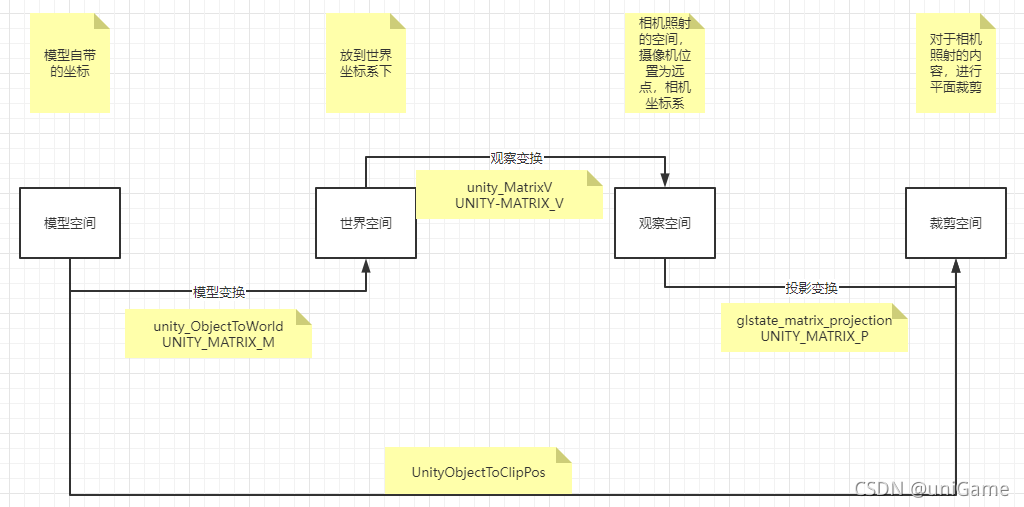
Think of it as multiplying by M, V, then P to reach clip space.
Matrices & macros
- Model → World:
unity_ObjectToWorld/UNITY_MATRIX_M - World → View:
unity_MatrixV/UNITY_MATRIX_V - View → Clip:
glstate_matrix_projection/UNITY_MATRIX_P
Combos:
- Model → View:
UNITY_MATRIX_MV - World → Clip:
UNITY_MATRIX_VP - Model → Clip (MVP):
UNITY_MATRIX_MVPor helperUnityObjectToClipPos
Model → World
float4 worldPos = mul(unity_ObjectToWorld, v.vertex);
World → View
float4 viewPos = mul(unity_MatrixV, worldPos);
View → Clip
float4 clipPos = mul(UNITY_MATRIX_P, viewPos);
World → Clip
float4 clipPos = mul(UNITY_MATRIX_VP, worldPos);
Model → View
float4 viewPos = mul(UNITY_MATRIX_MV, v.vertex);
Model → Clip (MVP)
float4 clipPos = mul(UNITY_MATRIX_MVP, v.vertex);
// or
o.pos = UnityObjectToClipPos(v.vertex);
Typical vertex shader
struct appdata {
    float4 vertex : POSITION;
};

struct v2f {
    float4 pos : SV_POSITION;
};

v2f vert (appdata v) {
    v2f o;
    o.pos = UnityObjectToClipPos(v.vertex);
    return o;
}
Need world space for lighting or projection? Compute worldPos and pass it through the interpolator.
Summary
- Remember the chain: Model → World → View → Clip
- Know the Unity matrices (
M,V,P,MV,VP,MVP) UnityObjectToClipPoshides the multiplications but understanding them makes custom effects easier
Original article (Chinese) on CSDN “uniGame”, CC BY-SA 4.0.
https://blog.csdn.net/alla_Candy/article/details/121176275